It is not easy to download ESXi 8 from Vmware official website.
You must have visited Wmware’s official website, but they only put a link to broadcom, and then they kept jumping around, and in the end you still couldn’t find the correct download link.
In this article, we will explain step by step how to download the correct esxi 8.
Steps to download ESXi 8
1 Sign up and Sign in broadcom.
2 Go to download center
3 Look for "VMware vSphere" and click:
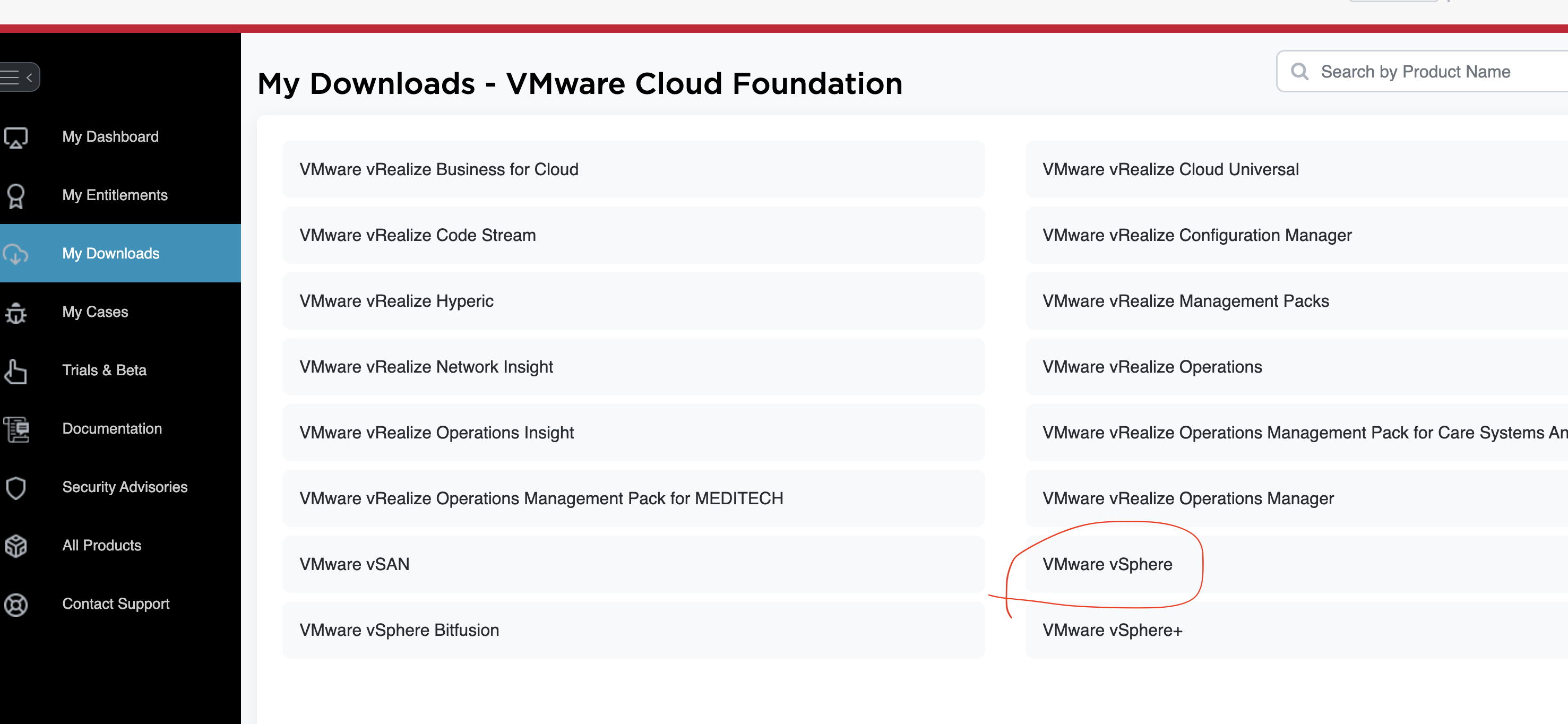
4 Then select one of the links such as "VMware vSphere Essentials Plus"
5 Select a version like "8.0"
6 Select "Custom ISOs"
7 Select one of the iso download:
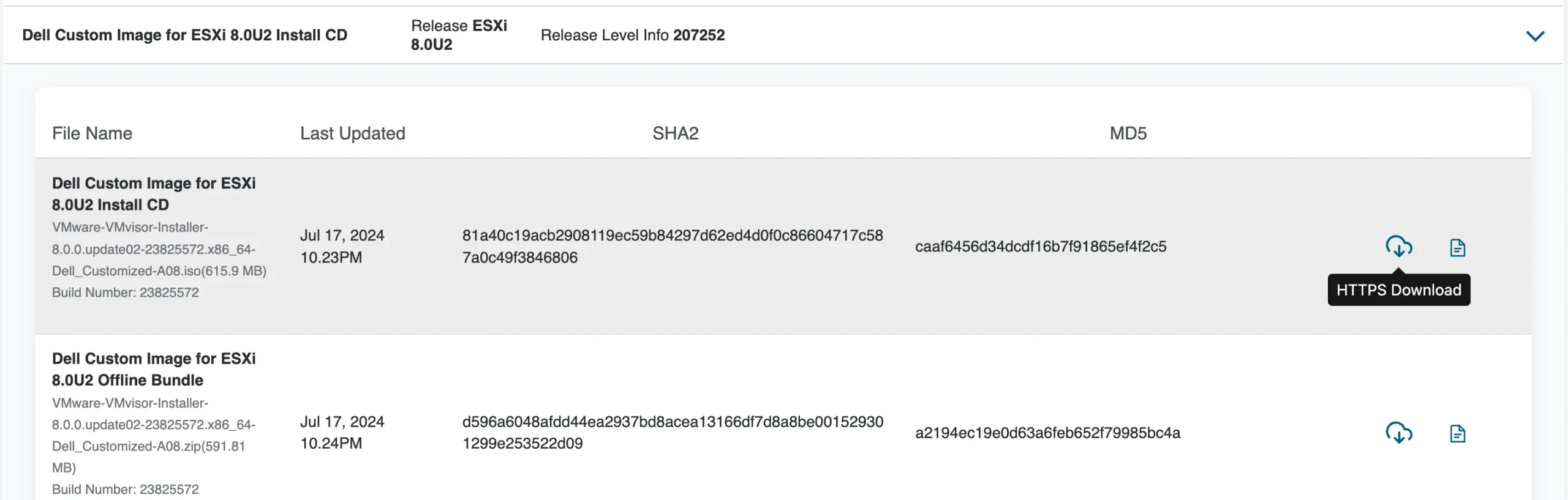
8 Done.
more about ESXi 8
- VMWare ESXi 8 license: https://gist.github.com/ayebrian/646775424393c9a35fb8257f44df1c8b
- Download windows 11: https://www.microsoft.com/en-us/software-download/windows11
- Windows 11 license: https://gist.github.com/rvrsh3ll/0810c6ed60e44cf7932e4fbae25880df
- Download Debian 12: https://cdimage.debian.org/debian-cd/current/amd64/iso-cd/
Reference
Previous post: ESXi 8 issue solved: This PC can’t run Windows 11
Next post: Get clicked word using pure Javascript